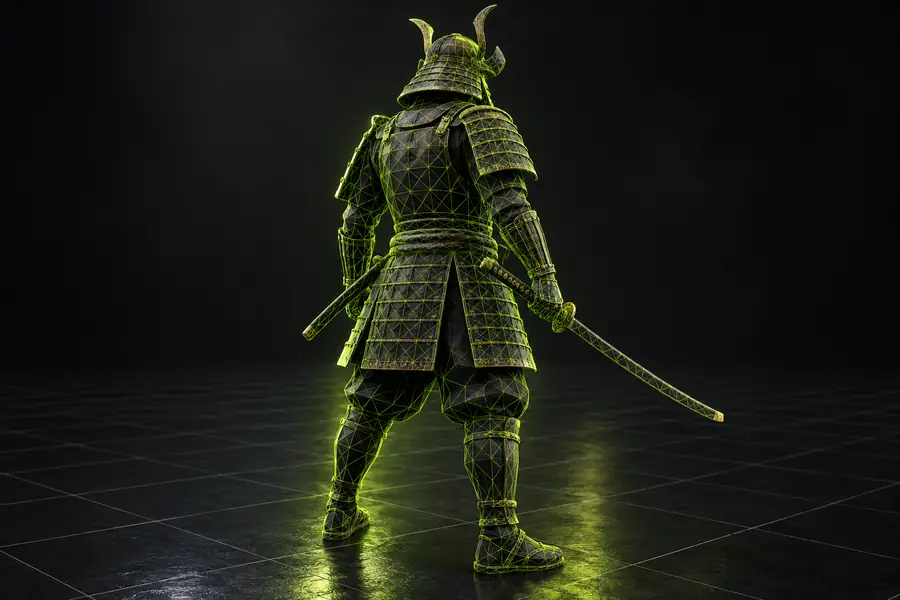

Model workflow

Plan lighter assets with glb poly reducer 3d models

A glb poly reducer 3d models workflow starts with a question: which details must survive simplification? Glbpolyreducer helps you think through the trade-off between mesh complexity, appearance, and the destination for your model. Treat the original GLB as your reference while you evaluate the options available in the linked studio.

Check available tools in the studio

The general glb poly reducer question is about lowering polygon count. For a particular 3D model, the useful answer depends on its silhouette, materials, animation, and viewing distance; a smaller mesh is not automatically a better asset.

The three things this model-focused approach does

Use these checks to define a useful result before choosing a polygon target. They describe decisions to make, not a promise that every control is available in the linked studio.

  1. 1

    Prioritize visible geometry

    Identify the outline, joints, openings, and other forms that make this model recognizable. A prop seen from across a scene can tolerate different changes from a close-up product model.

  2. 2

    Separate mesh detail from surface detail

    Look for features carried by geometry versus textures and materials. Reducing polygons cannot replace a missing silhouette, while densely subdivided flat surfaces may offer little visible benefit.

  3. 3

    Judge the intended use

    Check the model at the size and distance at which people will see it. Compare appearance as well as size, and keep the original so you can revisit the decision.

How to start with a model comparison

Open the original model, note where its detail matters, and make a separate candidate for evaluation. Review both in the same viewer and lighting before deciding whether the change is acceptable.

  • Target appearance
  • Simplified candidate

These illustrations show the comparison to make, not a measured reduction of the same file.

Illustration of a 3D model interface showing a target mesh
Illustration of a 3D model interface showing a simplified mesh

Limits to check before using a lighter model

A glb poly reducer can address mesh complexity, but polygon count is only one part of a usable GLB. These situations call for different checks before you accept a result.

Web viewer designer

A model looks fine at thumbnail size but develops a jagged outline when visitors rotate and enlarge it.

Inspect the silhouette at the viewer's largest expected size rather than relying on the file-size change alone.

glb poly reducer online

Game artist

A character has thin accessories and moving joints that may be sensitive to a lower polygon count.

Check deformation and recognizable details in motion, not only the asset in a static pose.

glb poly reducer tutorial 3d models

Product visualizer

The mesh is already modest, yet its GLB remains larger than expected.

Investigate textures and other file contents before removing geometry that defines the product.

glb compressor

Technical artist

A reduced asset looks acceptable in one preview but changes appearance in its destination viewer.

Test materials, normals, and any animation in the actual destination before replacing the original.

glb poly reducer vs 3d models

Take a model-first question into the studio

Explore the next step for your 3D model

Bring a clear goal: the detail to preserve, the setting where the asset will appear, and the trade-off you are willing to inspect. The linked studio is a place to explore available 3D tools; verify its supported inputs, controls, and outputs before relying on it for GLB reduction.

Explore 3D tools
  • Keep your original model
  • Compare results at the intended viewing size
  • Check the destination viewer

FAQ about reducing polygons in 3D models

Polygon reduction aims to simplify the model's mesh by using fewer faces. The visible effect depends on which geometry is removed and how the result is processed. It does not, by itself, guarantee a smaller texture payload or an unchanged appearance.

A simpler mesh can reduce the geometry portion of a file, but the total also includes other data, such as textures and materials. If those account for most of the size, the overall difference may be limited. Compare actual exported files rather than assuming a polygon target will produce a particular file size.

Compare it with the original under similar lighting and at the viewing distances that matter for your project. Rotate both models and inspect outlines, thin parts, curved surfaces, and moving areas if applicable. Test the candidate in its destination viewer before replacing the original.

A single target is unlikely to suit models with different shapes and uses. A distant background prop and a close-up product visualization place different demands on their meshes. Choose a target by evaluating the particular model's appearance and destination, rather than treating the count as a universal rule.

Explore 3D studio
Explore 3D studio