Glb Poly Reducer: Fixing GLB to USDZ AR Scale Issues
Learn how a glb poly reducer workflow helps diagnose GLB to USDZ unit mismatches, check model dimensions, and fix AR scale before testing on iPhone.
If you came looking for glb poly reducer guidance, this article explains how to check GLB dimensions and units before converting to USDZ, so your AR model appears at the intended real-world scale.
An AR model that fills the room—or looks like a speck on the floor—usually has a unit mismatch, not a broken mesh. I check the converter’s size readout against the real object before I send the USDZ to an iPhone.
The short version
- AR Quick Look displays a USDZ at real-world scale in meters. A GLB authored in centimeters or millimeters can therefore appear far too large if its numbers are treated as meters.
- In SupaVoxel’s GLB to USDZ converter, compare Output size with the object’s real dimensions, change File units if needed, then convert again.
- Test the result on an iPhone or iPad. A desktop preview can look fine while hiding an AR scale mistake.
- If the size is right but the result still looks wrong, check its placement, texture detail and whether you expected animation to play.
Read the symptom before changing the file
A GLB contains geometry as coordinates. Its numbers only make sense at the intended scale: a chair modeled with centimeter-sized coordinates will be enormous if those coordinates are interpreted as meters. USDZ, meanwhile, is displayed by AR Quick Look at its real-world size. Conversion cannot tell you how large you meant the chair to be; you need to check that against the object.
The quickest clue is the Output size readout. If a chair appears there as 90 m tall, but should be about 0.9 m, the source was likely authored in centimeters. Switching File units to cm addresses that mismatch. A model authored in millimeters but read as meters has an even larger discrepancy: it can appear 1,000 times too big.
A tiny model points to the same class of problem in the other direction. Don’t compensate by dragging it larger in AR and declaring the export fixed. First compare the converter’s reported dimensions with the size you intended. That gives you a repeatable setting for the next export rather than a correction made only on your phone.
Diagnose the GLB at the size readout
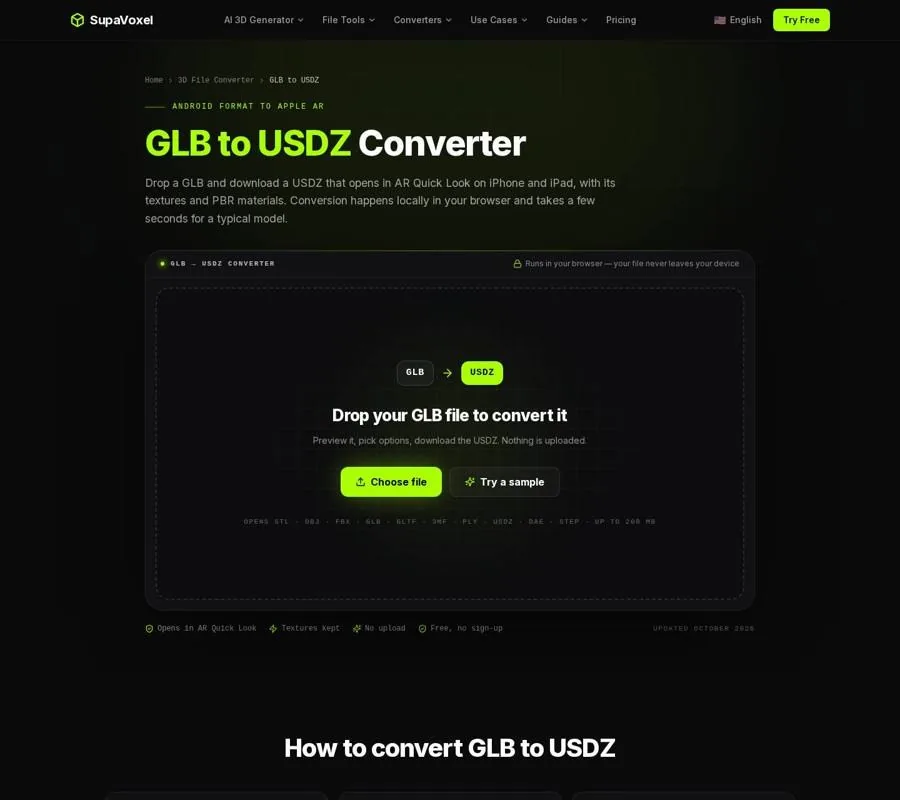
The GLB converter shows an Output size in meters, which you can compare with the real object before conversion.
I use this check even when a GLB looks normal in a desktop viewer. A viewer can frame an object to fit its window; that tells me the mesh loaded, not whether its physical dimensions make sense. AR makes the difference obvious because the object has to occupy space beside furniture and other familiar references.
Load the GLB and look at its Output size, which is expressed in meters. Then ask a concrete question: How large should this object be in the room? A chair might be about 0.9 m tall. If the readout says 90 m, try cm under File units and check the readout again. If a different setting makes the reported size implausibly small, go back rather than assuming the first change must have been right.
This is also a useful time to check what actually loaded. The converter reports textures, materials and separate meshes. If the file contains a large backdrop or ground plane, that geometry will travel into the USDZ too. It is not a unit problem, but it can make the object’s overall placement confusing once Quick Look puts it in your space.
Convert again, then check the model on an iPhone
Once the reported size matches the intended object, I make a fresh USDZ rather than trying to correct the previous file on the phone:
- Set File units for the scale used when the GLB was authored. Check Output size again in meters.
- Leave Keep textures on if the material appearance matters, then press Convert to USDZ.
- Send the resulting file to an iPhone or iPad by AirDrop or a message and tap it to open AR Quick Look.
- Place it in AR beside something whose size you know. Check both its apparent height and where it meets the surface.
That last check separates scale from placement. If the object is the right height but floats above the floor, inspect the source mesh. Its base should sit at the bottom of its bounds so it rests naturally when placed in AR. If the GLB includes an unwanted ground plane, remove that from the source rather than trying to solve it with File units.
Keep the original GLB as well as the USDZ if the model is destined for a product page. GLB serves Android and web viewers, while USDZ is the file Apple devices open for AR. Fixing the USDZ’s scale does not replace the need to check how the original GLB appears elsewhere.
If the source was OBJ, solve its unit ambiguity first
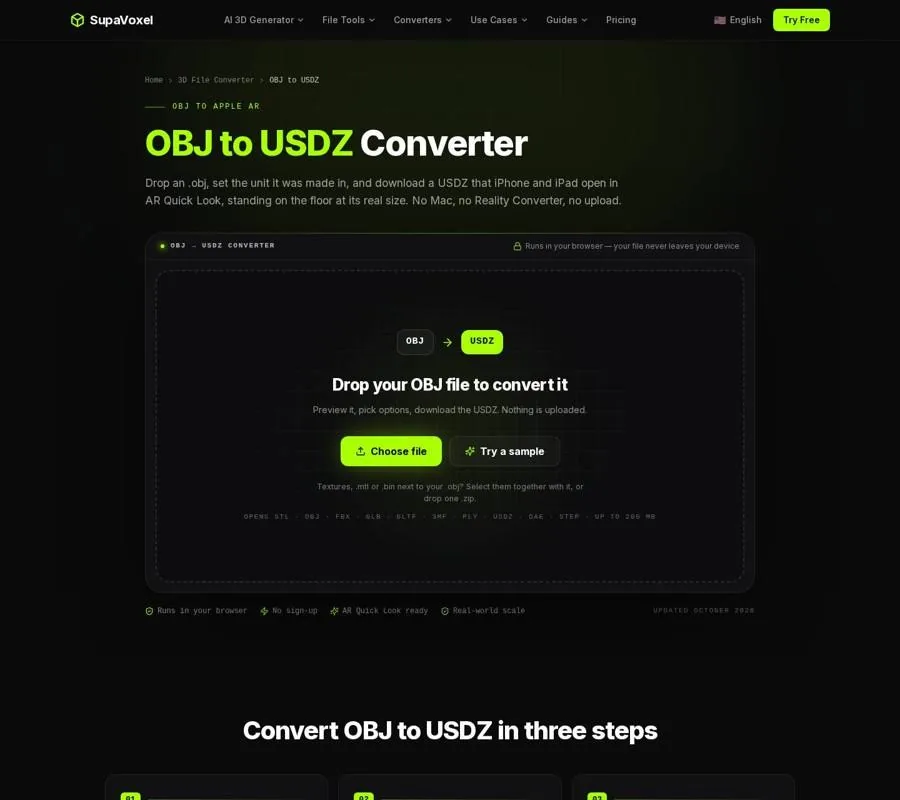
The OBJ converter asks for the source unit and shows the resulting size in meters.
Some scale problems begin before a GLB exists. OBJ has no stored unit: the same coordinate could mean millimeters, centimeters or meters, depending on the program that wrote it. A printable model is often made in millimeters. Treat a 60 mm figurine as meters during conversion and it becomes 60 meters tall in AR.
If your original asset is an OBJ, SupaVoxel’s OBJ to USDZ converter lets you choose its File units and inspect the final size in meters. That gives you a direct way to check the source rather than guessing which intermediate export introduced the scale error.
OBJ has a separate appearance trap, too. Its material definitions live in an .mtl file, which can point to texture images. Supply the OBJ, MTL and images together—or a zip of their folder—if you want those textures in the USDZ. A gray model caused by missing files is a different problem from a model that fills the room.
If the source was FBX, check size and texture files
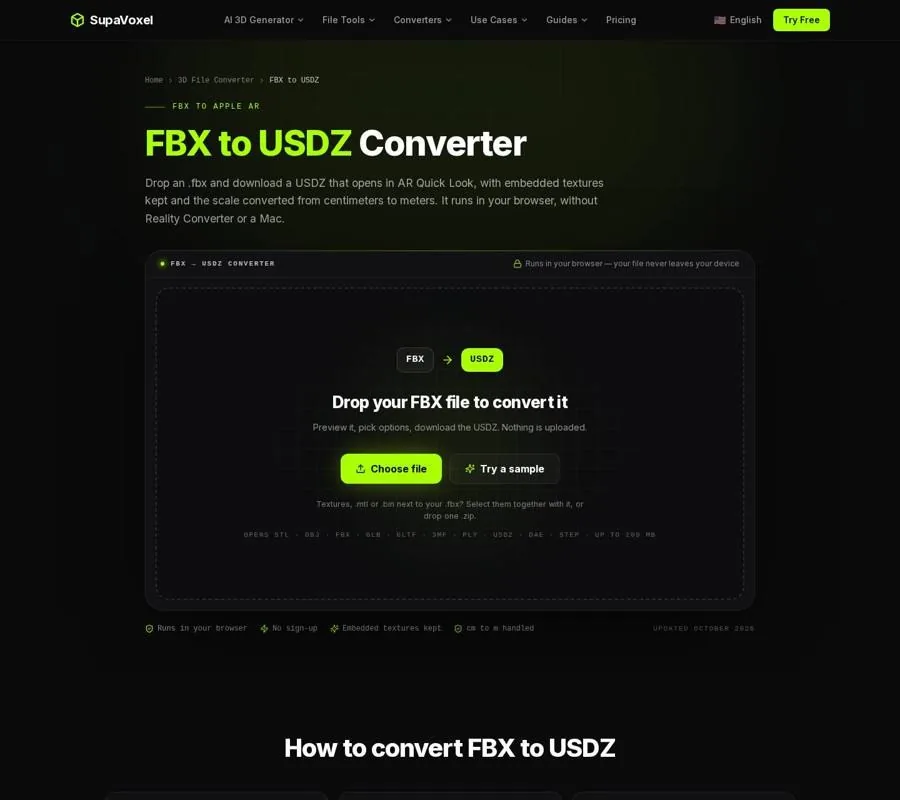
The FBX converter reports Output size and identifies texture files the source asks for but were not supplied.
FBX can carry unit information, yet I still check the final dimensions rather than trusting the export history. FBX files from Maya, 3ds Max, Unity and Mixamo are usually in centimeters, which is the default on SupaVoxel’s FBX to USDZ converter. Its Output size makes a mismatch visible: a character expected to read about 1.8 m should not read 0.018 m or 180 m.
FBX may also contain textures inside the file or refer to images stored separately. If its images are linked, supply them alongside the FBX or as a zip; the converter identifies requested textures that are missing. Correcting the unit will not restore an image the converter never received.
For a posed character, check the pose before conversion as well. This converter produces a static USDZ: it bakes the skinned mesh in its rest pose and drops animation takes. A character standing at the right height but showing the wrong pose needs a source-file change, not another scale adjustment.
Rule out appearance and geometry problems
A correctly sized USDZ can still disappoint in AR. The GLB converter keeps base color, alpha and several PBR texture maps, but it downsizes textures larger than 1024 px. Fine print that looked sharp in the source may look softer in a close view. That is a texture-detail limit, not evidence that the model was scaled incorrectly.
Animation is another separate issue. The GLB converter exports the resting pose and does not carry animation clips into its USDZ. If a walk cycle is missing, changing File units will only change the static model’s size.
If you need to inspect or edit a USDZ you already have, SupaVoxel’s USDZ to OBJ converter extracts an editable OBJ with an MTL and PNG textures. Use that route when the mesh itself needs work, but know what the format change loses: OBJ has no animation, and its classic MTL does not carry the USDZ’s roughness, metalness or occlusion maps. For a simple scale mismatch, returning to the source GLB and checking Output size is the cleaner fix.
FAQ
Why does my GLB look fine on a computer but huge in AR?
A desktop viewer can frame the model without showing you its intended physical size. Check Output size in meters, compare it with the real object, and select the source GLB’s actual File units before converting again.
Will changing File units fix a floating model?
Only if the problem is its overall scale. If the size is correct but it floats or sits awkwardly, check where the model’s base falls within its bounds and remove any unwanted backdrop or ground plane from the source.
Why are my USDZ textures blurry after I fix the size?
The GLB converter downsizes textures larger than 1024 px. Correcting File units will not recover that detail. Check the model on an iPhone at its intended AR viewing distance, especially if small labels are important.
Want to try it yourself?
Try Supavoxel →